Importing pupil details from systems e.g. SIMS
You may wish to import pupil’s details from a data system such as SIMS to automatically create pupil profiles on Reach2Teach AFIT
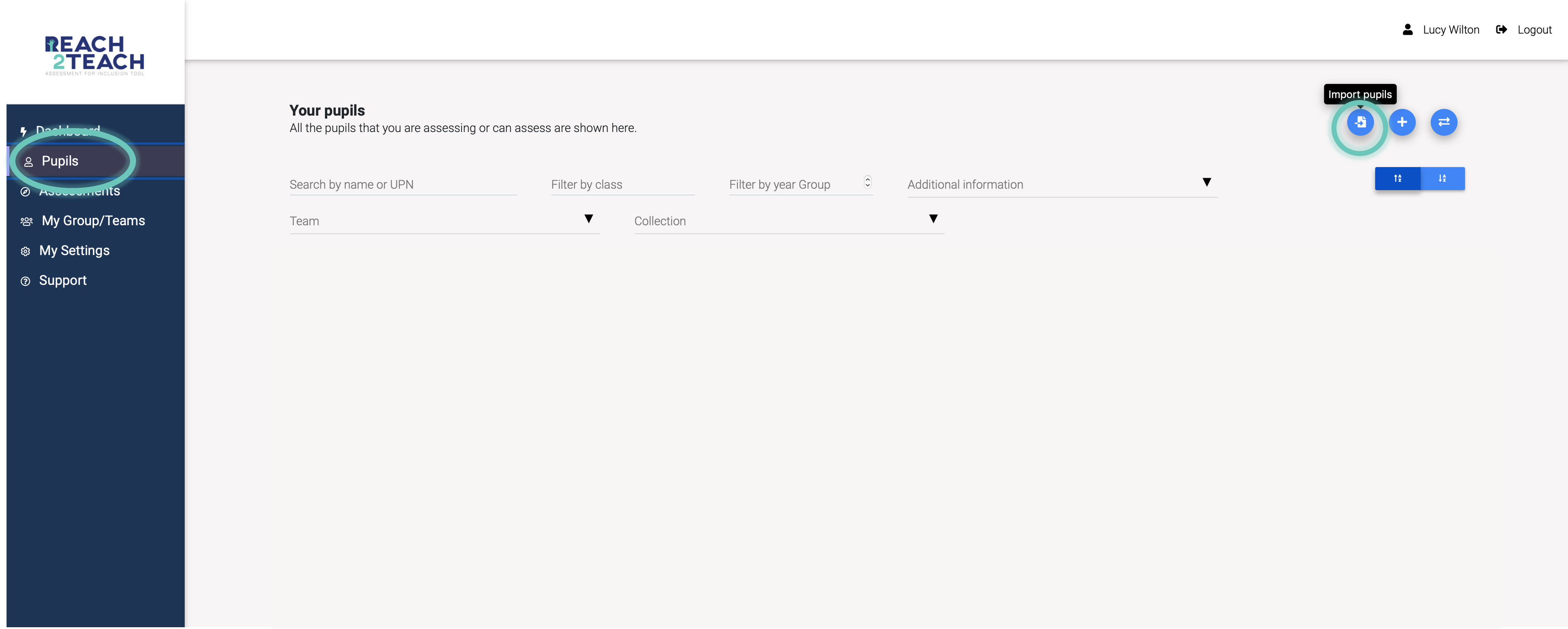
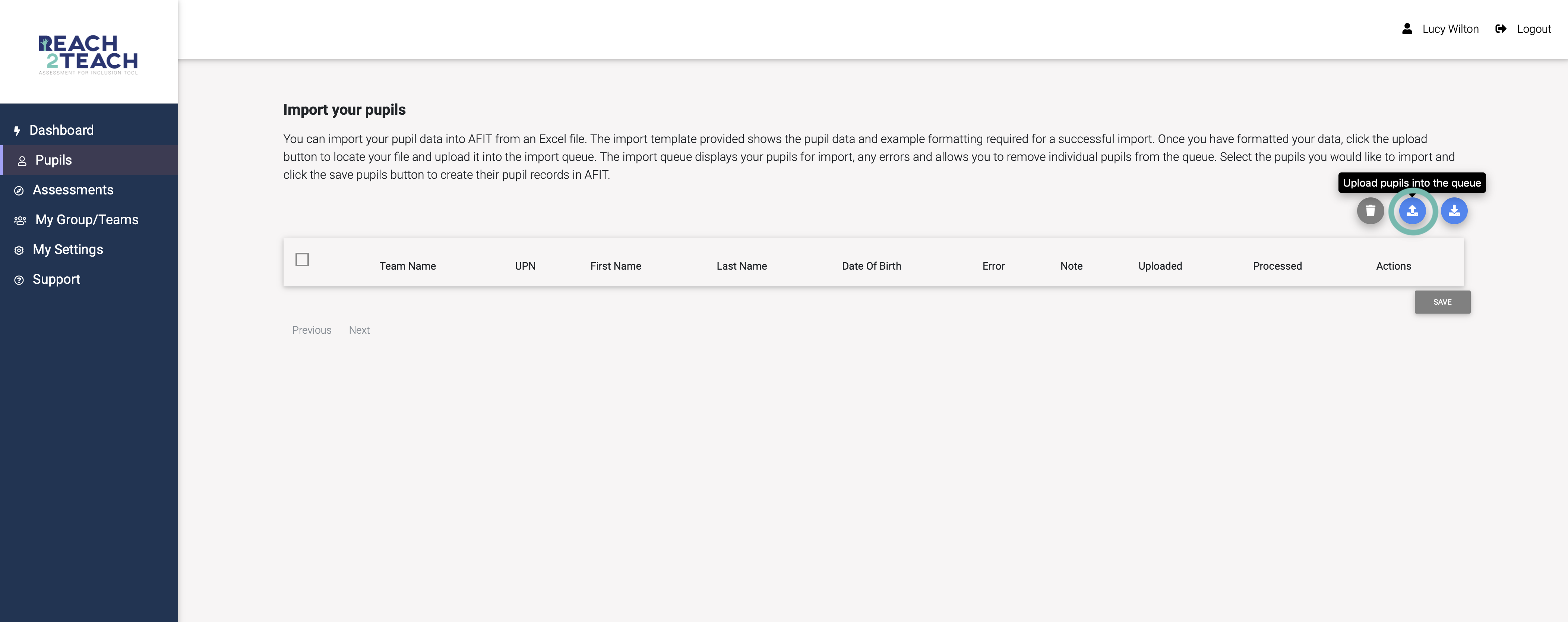
In Pupils section, click the Import pupils icon
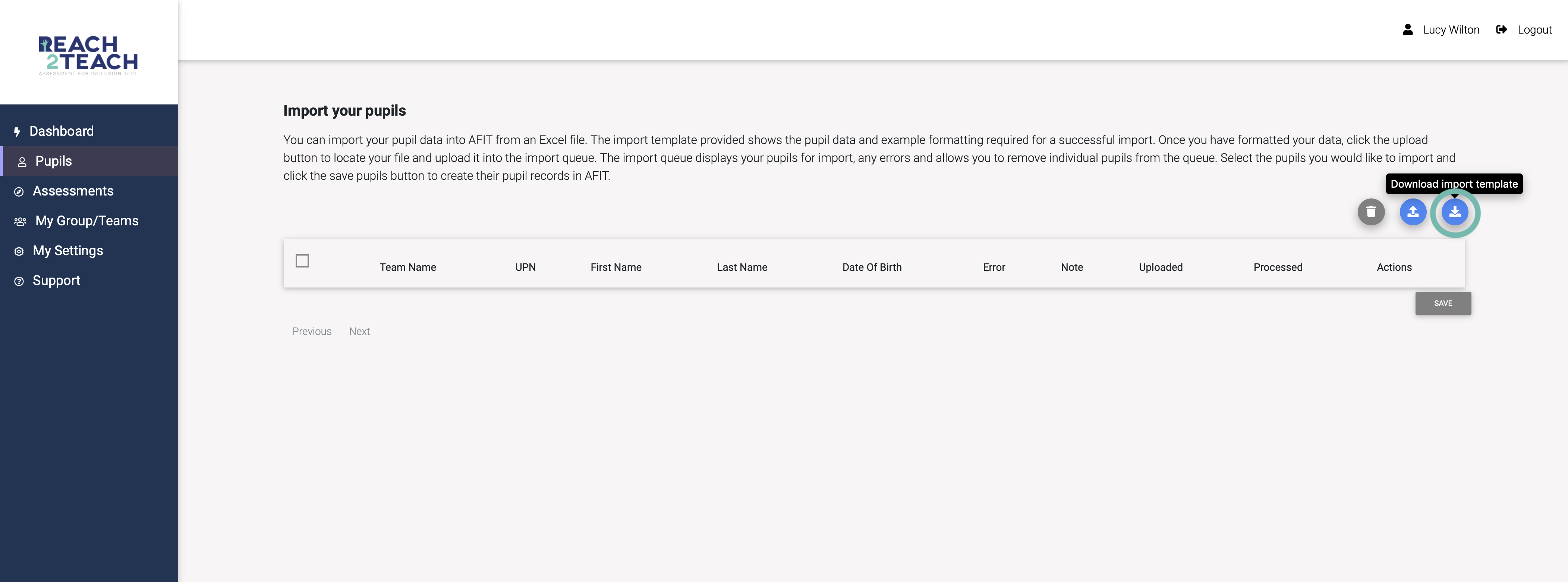
Click Download import template
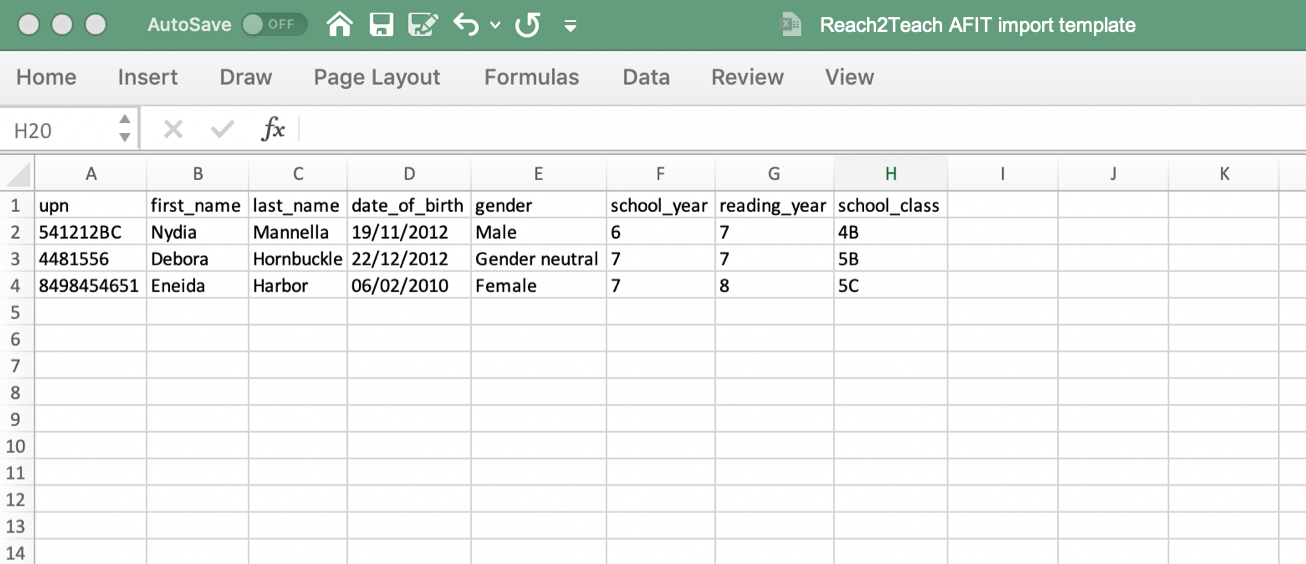
Fill in the excel document as shown in the template otherwise the data may not be imported (lots of data systems e.g. SIMS allow you to export a report. Ensure that the report is an excel document and that the data reflects the Reach2Teach AFIT import template’s format) and save it.
NB
The column headers must remain the same
All cells should be formatted as Text (not number or date etc)
Date of birth must be in text format and look like DD/MM/YYYY
School year must be a numerical figure only e.g. 5 (not Year 5 or Yr5 etc) if you are importing from SIMS use the SIMS field; Year taught in code
Gender must be Male, Female or Gender neutral (not M, F etc)
Click on the upload pupils into the queue icon.
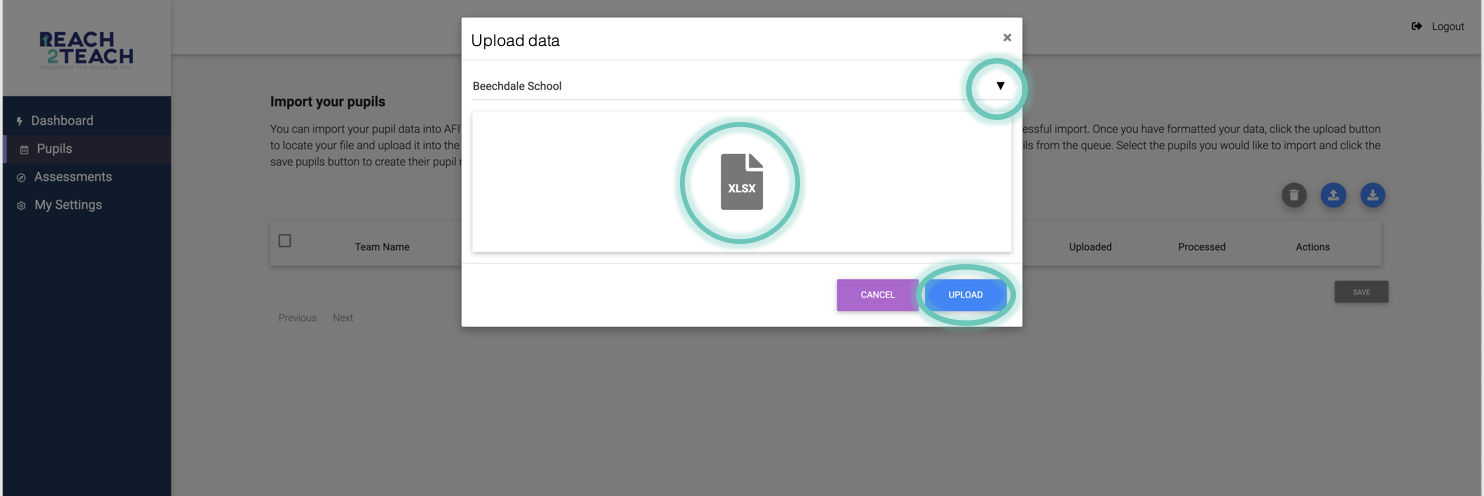
Choose a Team to upload the data to, drag and drop the excel file you wish to import and select Upload.
Select pupils you wish to upload, or Select all, then click Save to upload them.
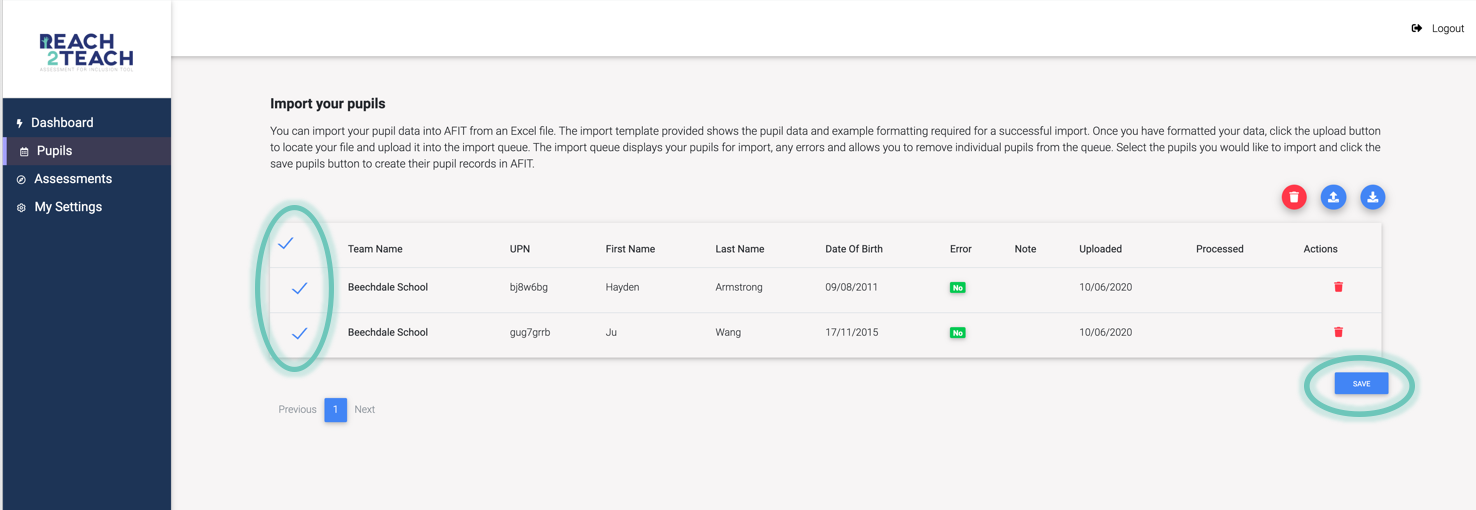
Pupils will be added to the Pupils section of you Reach2Teach AFIT account.
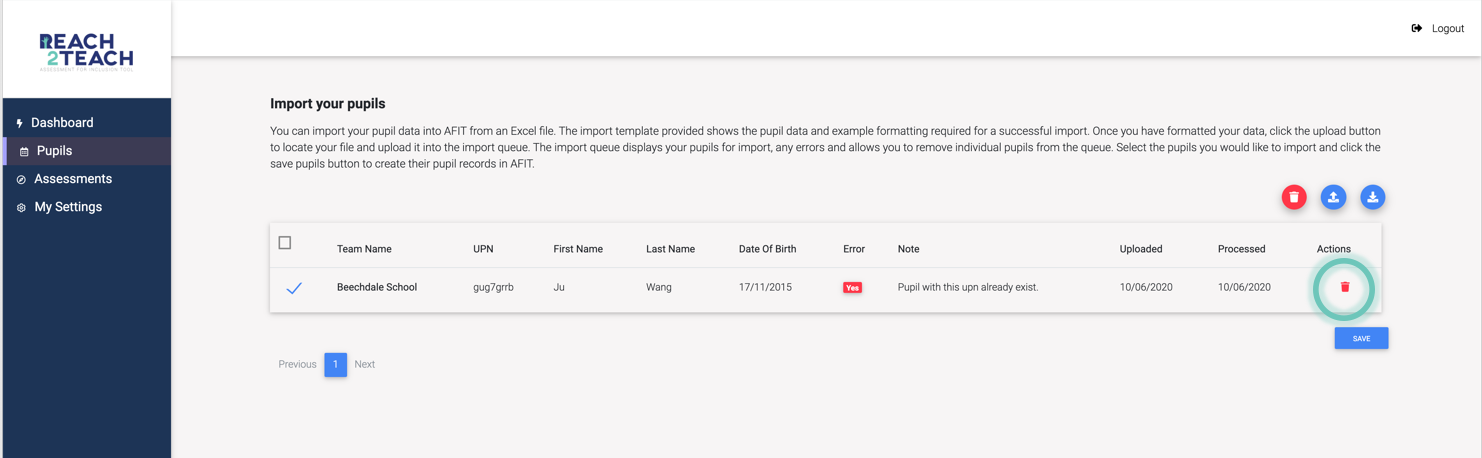
An error message will occur if the details you provided are not in the correct format or if the pupil already exists on Reach2Teach AFIT in your account or another (view Request a pupil transfer if the pupil is assigned to another Reach2Teach AFIT account that you require).
You can delete pupil data from the import queue, by clicking the delete icon next to the pupil data or Select all and click the delete icon above the import queue to delete all data in the queue.